
Two-factor authentication (2FA) or multi-factor authentication adds an extra degree of protection, and all users have to provide this code in order to access their account and make cross-border payments.
A user is only permitted access to an application or website using the 2FA electronic authentication procedure after successfully showing two or more pieces of evidence, including knowledge, possession, and inherent characteristics. Here are a few examples of this:
Something you know - a password or a pin
Something you have - a smartphone
Something you are - a fingerprint or facial recognition
Each user must configure 2FA, you can't do this for others at your organisation.
With the two-factor authentication enabled on your account, you would require an additional 6-digit verification code for a successful sign in to Freemarket.
To create a time-based one-time password (TOTP) that will change each time you use it, we advise setting up two-factor authentication on an app. For this, we advise adopting a cloud-based application. The majority of applications available would support this. Below we've listed some of the options available to you.
You must enter a verification code if 2FA is enabled on your Freemarket account in order to sign in successfully.
After setting up 2FA, a 30-day window will open for your account. Otherwise, on the 30th day, you will be asked to perform 2FA during a period of activity. If you are unable to execute 2FA in order to pass the checkup, you must utilise the given shortcut to modify your 2FA settings and maintain platform access.
First time setup
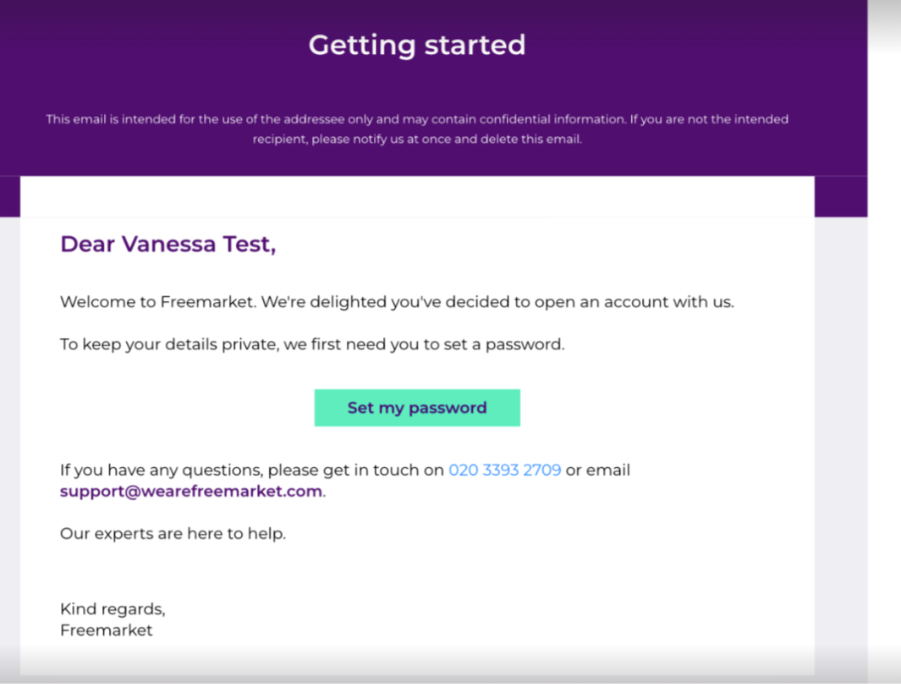
1.Each user receives a welcome email with instructions to set up a password on the platform. Please click on “Set Password”
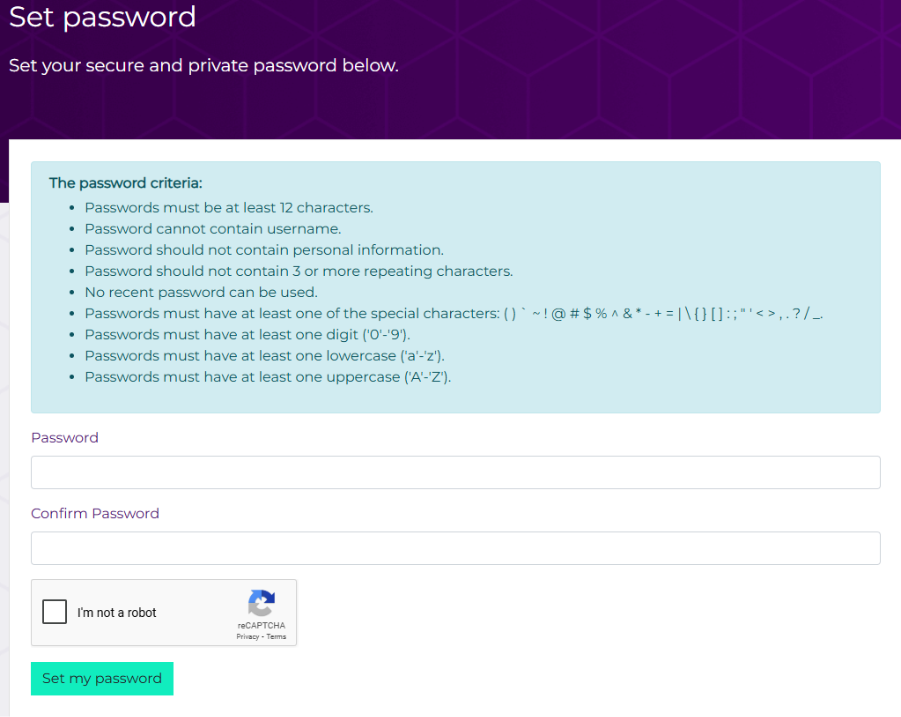
- Please ensure your password is set according to the required criteria.
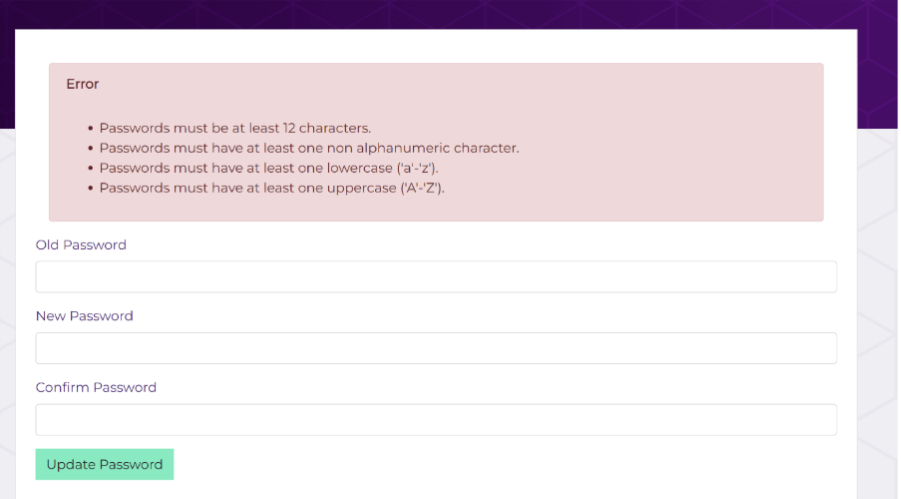
 Please note: If your current password does not meet the new complexity rules you will be prompted to change your password: once the password is updated, you will be sent back to the sign in page so you can log in with your updated credentials to sign in.
 3. You are all set, click on “back to login”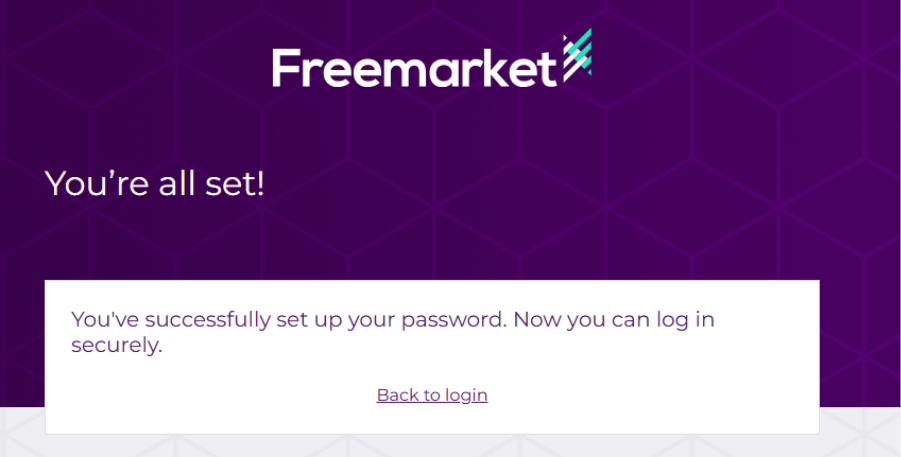
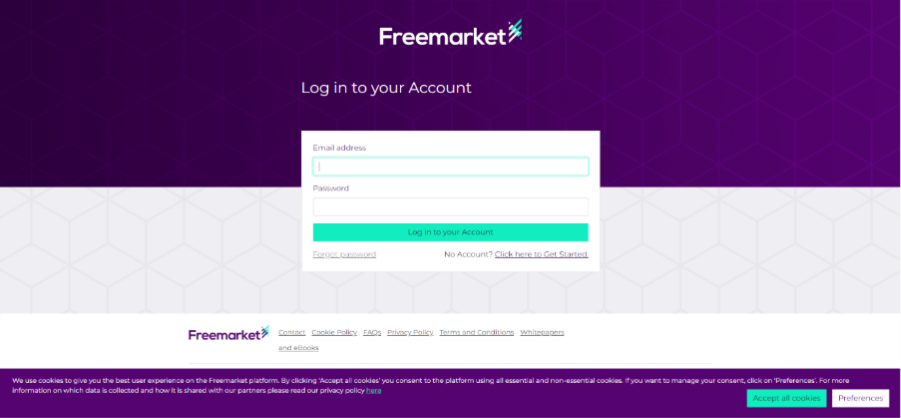
- Login into the platform using your email address and the password
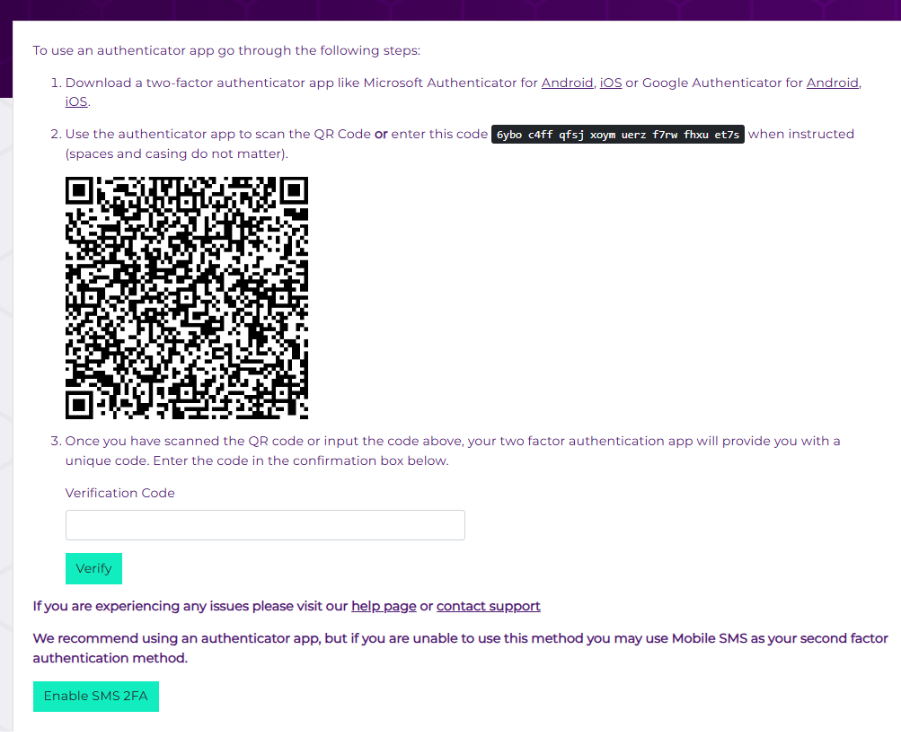
- Configure the authenticator and enter the code you were provided. Please note that You can download an authenticator app from the Google Play Store or the App Store that is compatible with your device, such as Microsoft Authenticator for Android and iOS or Google Authenticator for Android and iOS. Once you have installed one of these applications, you can either manually enter the required information or simply scan a QR code. After scanning, the authenticator app will generate a six‑digit verification code that refreshes automatically every 30 seconds. Click verify.
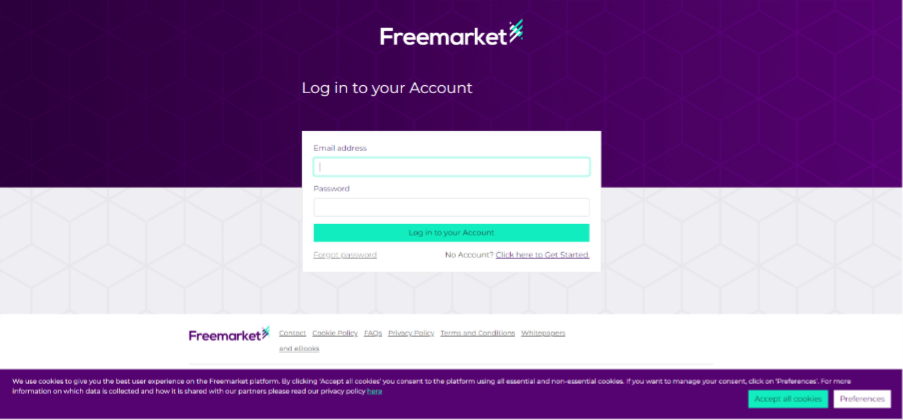
- you can now login into the account using email address and password
- Please click on receive code to get the verification code depending on your current 2FA
- Type in the verification code you were supplied
- Set up is completed
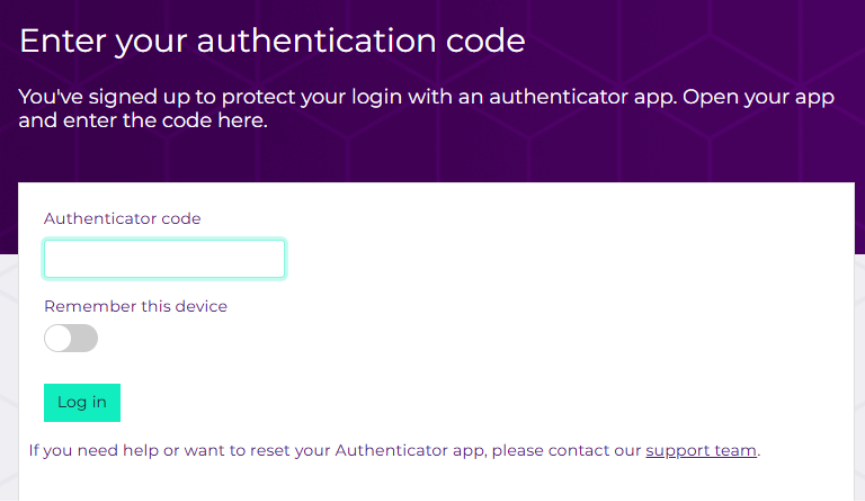
- When you log in to your account, the next screen will appear . If you'd like not to be prompted for another 30 days, choose to remember the device
- If there is a phone number registered on the account, then a verification code will be sent to the registered mobile number as a primary option for 2FA
- If there is no phone number registered on the account, the verification code will be sent to the registered email address as a primary option for 2FA
Signing into Freemarket using the authenticator app
Once you've successfully set up the 2FA, subsequent logins will require the verification code it creates, so when you enter your credentials, the next screen you'll be provided with will ask you to input the verification code.
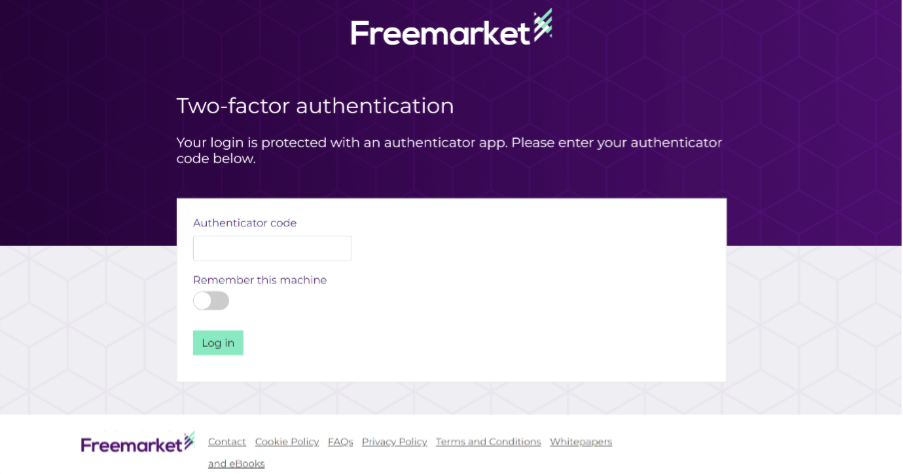
- Open the authenticator app
- Enter the the 6-digit verification code displayed on the authenticator app and click on log in
If you encounter any issues logging in, please contact support@wearefreemarket.com to have your authenticator app disabled or reset.